Introduction
Note
The channels described in this article belong to the legacy multicast feed (multicast groups 239.111.111.x on UDP ports 6100/6101 in production and 6200/6201 in the test environment). That feed has been superseded by the multicast market data feed of Deribit's high-performance matching engine, Starbase, and is scheduled for deprecation at the end of 2026.
Starbase propagates multicast market data within LD4, AWS eu-west-2, and AWS ap-northeast-1 for all derivatives. Its production and test channel assignments, multicast group addresses, destination ports, and retransmit ports (including the ports used over AWS) are listed on the Starbase Multicast Channels page. The AWS setup steps in this article (requesting the resource share, attaching the transit gateway, and the IGMPv2 requirement) apply to both feeds.
Receiving multicast is possible using a shared resource from the Deribit network account, this currently only runs in the Europe (London) eu-west-2 region or in the Asia Pacific (Tokyo) ap-northeast-1 region. In this document are the instructions on how to setup and how to test the multicast setup.
Setting up AWS to receive multicast
Before you can access the multicast streams you have to request a shared resource, please send an email to ‘colo-support@coinbase.com’ following the below guidelines:
-
Include the following in the mail subject:
-
#Multicast acceptance - <your company name> - <UID>
-
-
Include the following in the email body:
-
Your AWS account ID (not your VPC Endpoint-ID)
-
the AWS region (eu-west-2 or ap-northeast-1)
-
Accept shared resources
Make sure you select Europe (London) eu-west-2 region or the Asia Pacific (Tokyo) ap-northeast-1 region. Go to Resource Access Manager, select shared with me → Resource shares.
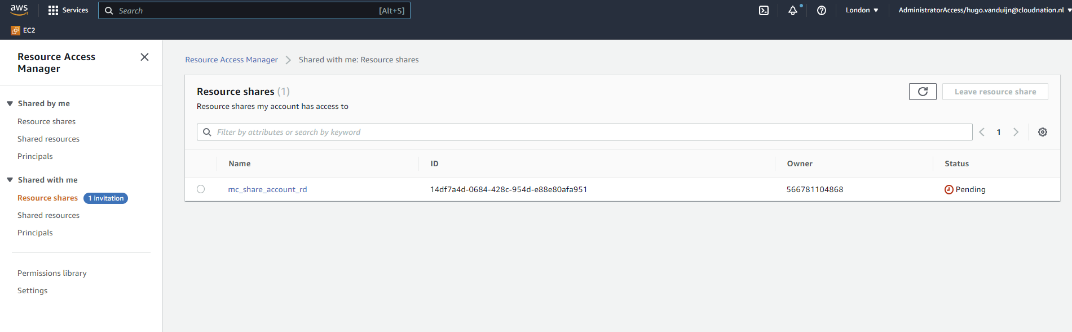
Click on the name of the Pending share and click Accept
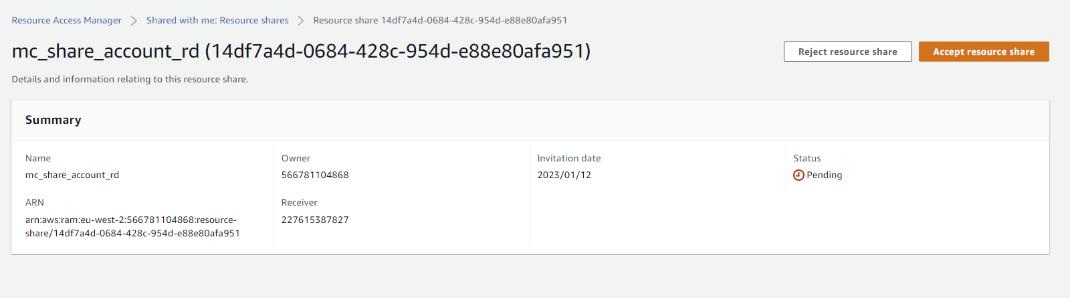
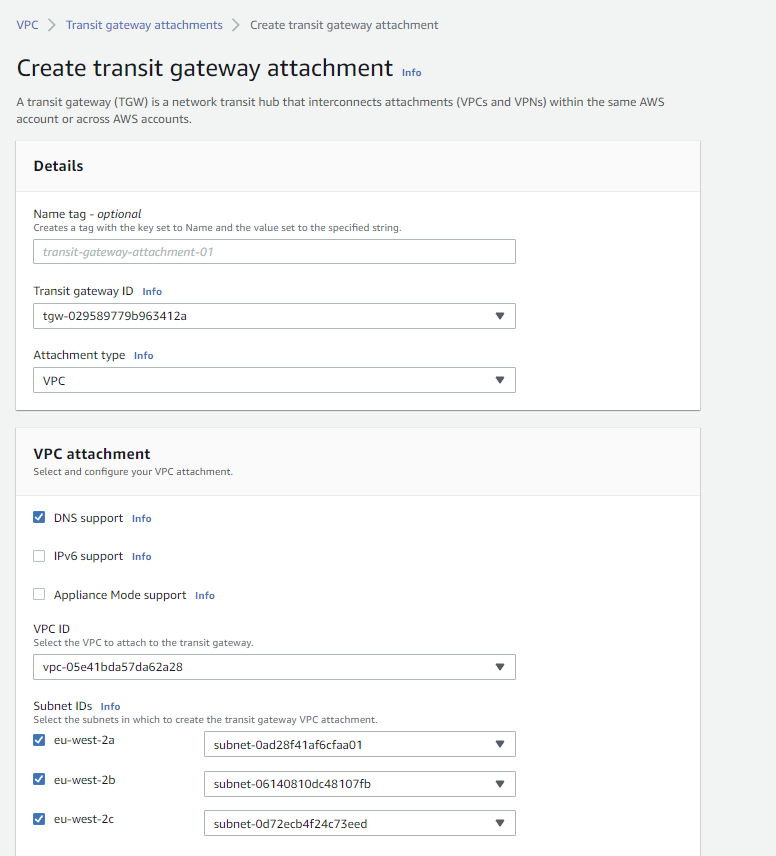
Configure Transit gateway multicast
Create a Transit gateway attachment to the shared transit gateway and attach the subnets in your own VPC where you want to be able to receive multicast traffic.
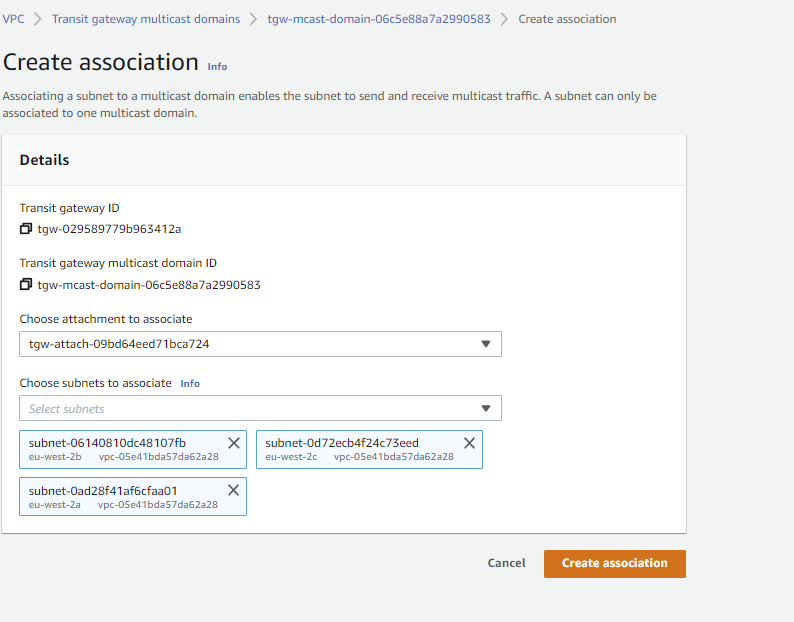
Go to the Transit gateway multicast in the VPC dashboard, select tab: Associations and Click Create association.
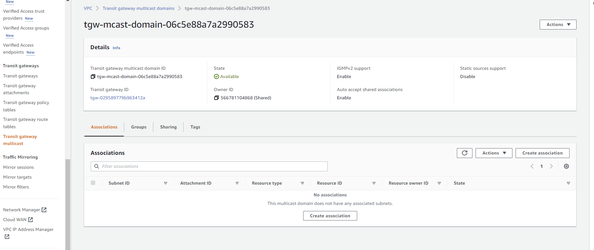
Select the attachment and the subnets.
Testing using Amazon Linux 2 instance
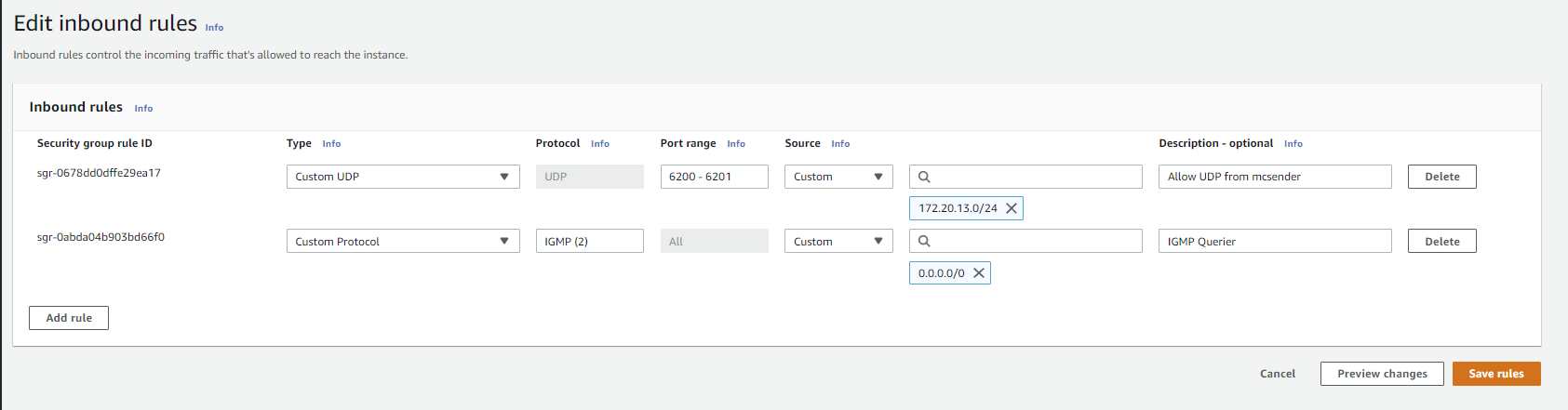
Make sure you use a nitro enabled instance : https://docs.aws.amazon.com/AWSEC2/latest/UserGuide/instance-types.html ( See Instances built on the Nitro System ) also inbound rules are to be set in the security group:
-
Legacy feed, ports used for testing : 6200-6201
-
Legacy feed, ports used for production : 6100-6101
-
Starbase feeds : the destination ports listed on the Starbase Multicast Channels page (4230 for snapshot and 4220 for incremental channels)
-
IP range London region : 172.20.13.0/24
-
IP range Tokyo region : 172.20.14.0/24
-
IGMPv2 protocol must be allowed inbound from anywhere: 0.0.0.0/0
In the example below the test feed is allowed from the London region : Custom UDP ports 6200-6201 for source 172.20.13.0/24 and IGMPv2 from anywhere
Socat is used to send a IGMP join command to the multicast address. Install using sudo yum install socat Tcpdump is used to receive the messages and screen session is used for switching between the tcpdump and socat.
The commands below join the legacy test feed (239.222.222.2 on port 6200) as an example. To verify a different feed, substitute the multicast group address and destination port of the channel you want to receive. For the Starbase feeds these are listed on the Starbase Multicast Channels page.
Make sure IGMP version 2 is used ( 3 is default and currently unsupported). Copy and paste code below to force using IGMP v2.
cat >/etc/sysctl.d/99-igmpv2.conf <<EOF
# Force kernel to use IGMP v2 rather than default to v3
net.ipv4.conf.all.force_igmp_version=2
EOF
sysctl -p /etc/sysctl.d/99-igmpv2.conf
Start screen session: screen -DR mysession
Start socat: socat -u UDP-RECVFROM:6200,reuseaddr,ip-add-membership=239.222.222.2:eth0,ip-pktinfo,fork SYSTEM:export
Create a new screen window using CTRL+a n and run tcpdump -v multicast and not broadcast
Output should look something like:
11:00:26.960914 IP (tos 0x0, ttl 4, id 53434, offset 0, flags [DF], proto UDP (17), length 248)
ip-172-20-13-55.eu-west-2.compute.internal.33552 > 239.222.222.2.lm-x: UDP, length 220
11:00:26.961512 IP (tos 0x0, ttl 4, id 53435, offset 0, flags [DF], proto UDP (17), length 103)
ip-172-20-13-55.eu-west-2.compute.internal.33552 > 239.222.222.2.lm-x: UDP, length 75
11:00:26.962211 IP (tos 0x0, ttl 4, id 53436, offset 0, flags [DF], proto UDP (17), length 248)
ip-172-20-13-55.eu-west-2.compute.internal.33552 > 239.222.222.2.lm-x: UDP, length 220
11:00:27.059313 IP (tos 0x0, ttl 4, id 53438, offset 0, flags [DF], proto UDP (17), length 121)
ip-172-20-13-55.eu-west-2.compute.internal.33552 > 239.222.222.2.lm-x: UDP, length 93
11:00:27.066568 IP (tos 0x0, ttl 4, id 53440, offset 0, flags [DF], proto UDP (17), length 121)
ip-172-20-13-55.eu-west-2.compute.internal.33552 > 239.222.222.2.lm-x: UDP, length 93
11:00:27.185705 IP (tos 0x0, ttl 4, id 53458, offset 0, flags [DF], proto UDP (17), length 85)
ip-172-20-13-55.eu-west-2.compute.internal.33552 > 239.222.222.2.lm-x: UDP, length 57
11:00:27.241053 IP (tos 0x0, ttl 4, id 53466, offset 0, flags [DF], proto UDP (17), length 85)
ip-172-20-13-55.eu-west-2.compute.internal.33552 > 239.222.222.2.lm-x: UDP, length 57
11:00:27.510470 IP (tos 0x0, ttl 4, id 53504, offset 0, flags [DF], proto UDP (17), length 181)
ip-172-20-13-55.eu-west-2.compute.internal.33552 > 239.222.222.2.lm-x: UDP, length 153
11:00:27.511022 IP (tos 0x0, ttl 4, id 53505, offset 0, flags [DF], proto UDP (17), length 181)
ip-172-20-13-55.eu-west-2.compute.internal.33552 > 239.222.222.2.lm-x: UDP, length 153
11:00:27.511022 IP (tos 0x0, ttl 4, id 53506, offset 0, flags [DF], proto UDP (17), length 181)
ip-172-20-13-55.eu-west-2.compute.internal.33552 > 239.222.222.2.lm-x: UDP, length 153
11:00:27.511022 IP (tos 0x0, ttl 4, id 53507, offset 0, flags [DF], proto UDP (17), length 181)
ip-172-20-13-55.eu-west-2.compute.internal.33552 > 239.222.222.2.lm-x: UDP, length 153
11:00:27.511607 IP (tos 0x0, ttl 4, id 53508, offset 0, flags [DF], proto UDP (17), length 181)
ip-172-20-13-55.eu-west-2.compute.internal.33552 > 239.222.222.2.lm-x: UDP, length 153
11:00:27.595607 IP (tos 0x0, ttl 4, id 53523, offset 0, flags [DF], proto UDP (17), length 103)
ip-172-20-13-55.eu-west-2.compute.internal.33552 > 239.222.222.2.lm-x: UDP, length 75
11:00:27.596188 IP (tos 0x0, ttl 4, id 53524, offset 0, flags [DF], proto UDP (17), length 103)
ip-172-20-13-55.eu-west-2.compute.internal.33552 > 239.222.222.2.lm-x: UDP, length 75
11:00:27.596188 IP (tos 0x0, ttl 4, id 53525, offset 0, flags [DF], proto UDP (17), length 85)
ip-172-20-13-55.eu-west-2.compute.internal.33552 > 239.222.222.2.lm-x: UDP, length 57
11:00:27.596947 IP (tos 0x0, ttl 4, id 53526, offset 0, flags [DF], proto UDP (17), length 103)
Output should occur rather often (usually multiple times per second), this verifies the multicast is working.
With screen you can switch between multiple screens using CTRL-a n or CTRL-a p , to kill a screen use CTRL-a K
Show data of multicast packages in Wireshark
For this we need Wireshark https://www.wireshark.org/ and the Wireshark plugin provided by Deribit , the plugin can be found in the MC Client Development Pack (ZIP) on the page : https://insights.deribit.com/exchange-updates/launch-of-our-new-multicast-service/
Inside the zip file you will find the file deribit_sbe.lua which must be copied into the plugin folder of Wireshark. On Windows systems with default Wireshark installation this folder is C:\Program Files\Wireshark\plugins
a .pcap file can be loaded in Wireshark, this file can be created using tcpdump:
We can capture the tcpdump to a file when we add -s 65535 -w <file> to the tcpdump command: tcpdump -v multicast and not broadcast -s 65535 -w multidump.pcap
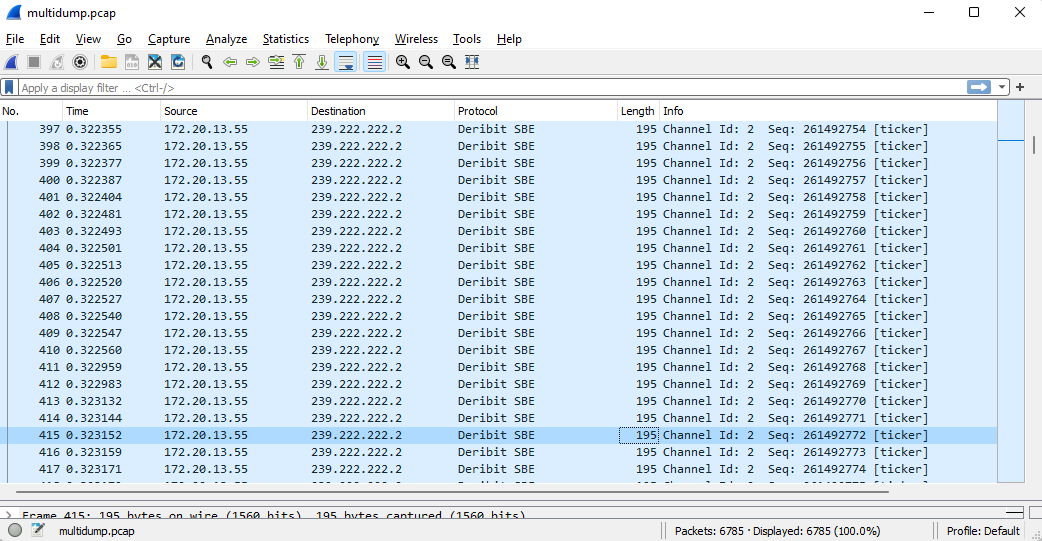
When opened in Wireshark with the plugin enabled the Protocol should show: Deribit SBE as shown below
Double click an item to retrieve the details :
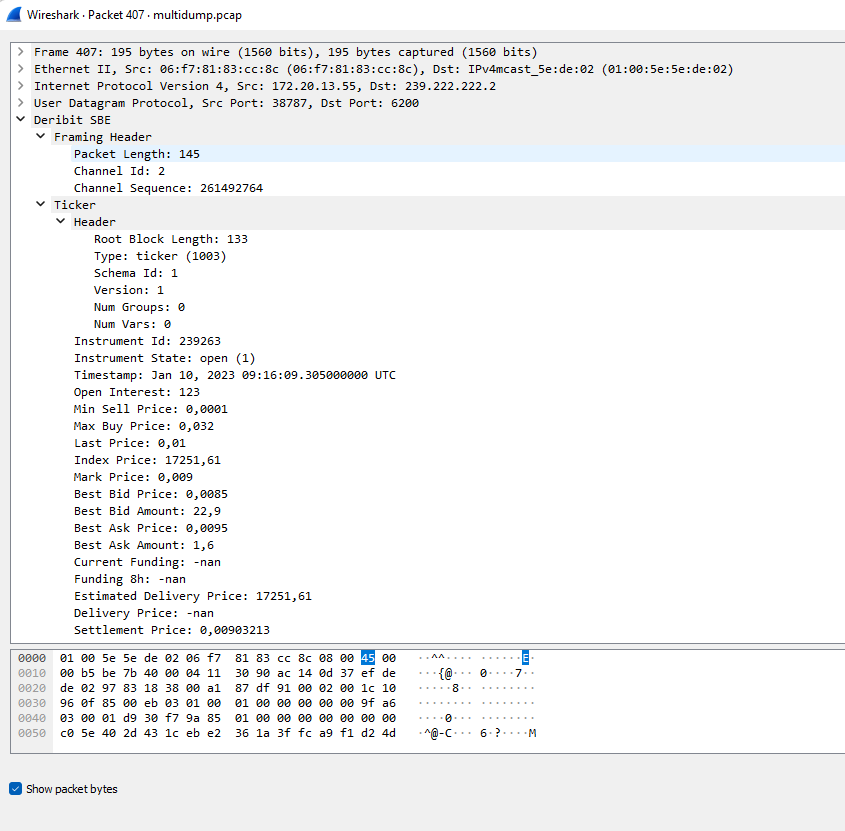
This should verify the multicast data has been received successfully.
Multicast Channels
Starbase feeds: the channel assignments, multicast group addresses (224.0.12.x), destination ports, and retransmit ports for both the production and the test feeds are documented on the Starbase Multicast Channels page, which also lists the TCP retransmit ports used by clients connecting over AWS PrivateLink.
Legacy feed: the channel assignments are listed in Multicast Channels for production and Multicast Test Environment Channels for the test environment. They are also included in the MC Client Development Pack Zip, which can be downloaded here.
Troubleshooting
Transitgateway Attachment creation fails
If a user has insufficient permissions, the transit gateway attachment created according to step 1.2 might enter a failed state.
To create a VPC attachment to a RAM shared transit gateway, the IAM user would need the following permissions:
-
ram:CreateResourceShare permission to share the transit gateway across accounts.
-
ec2:CreateTransitGatewayVpcAttachment permission to create the VPC attachment to the shared transit gateway.
-
ec2:DescribeTransitGateways permission to view the shared transit gateway.
No data received when issuing the socat command in one screen session and tcpdump in another screen session.
If data fails to be received despite the execution of the socat command in one screen session and tcpdump in another, it may be necessary to verify the security group rules configured for the instance. Configure the SG as follows:
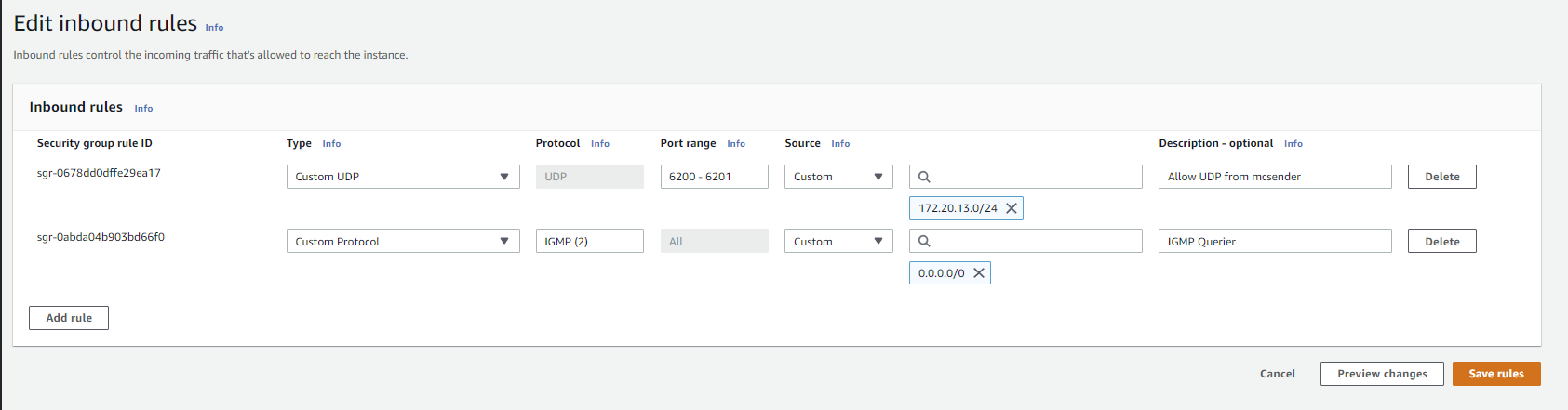
Specifically the second line allowing IGMP traffic from any source might be necessary.
Why am I getting a response error 404 ?
Verify the following:
-
Your VPCE is in the correct zone, either London or Tokyo, depending on which region you’ve requested.
-
Confirm that step number 3 in the setup guide is correctly configured, and that the DNS point to gateway.deribit.com
IP whitelisting - i wish to whitelist my IP
This can be done via the API itself directly without our intervening, If you wish to be sure about the IP address? Simply send a request and let us know with your UID alongside the exact time window so we can trace it back from the logs for you.
Is IGMPv2 0.0.0.0/0 secure enough?
The rule for 0.0.0.0 in security groups is, in fact, secure. This is because it exclusively permits IGMP (Internet Group Management Protocol) traffic. IGMP is a local protocol, and it's designed not to ingress into your Virtual Private Cloud (VPC) from external sources, except through the shared transit gateway attachment, which is where you receive both test and production feeds. Therefore, implementing this rule should not introduce any additional security risks.Please note that this is crucial step of the setup process, and will trigger error’s if skipped.